Building an AI feature usually starts simple. Your backend sends a request to a model, gets an answer, and returns it to the user.
Then the questions start!
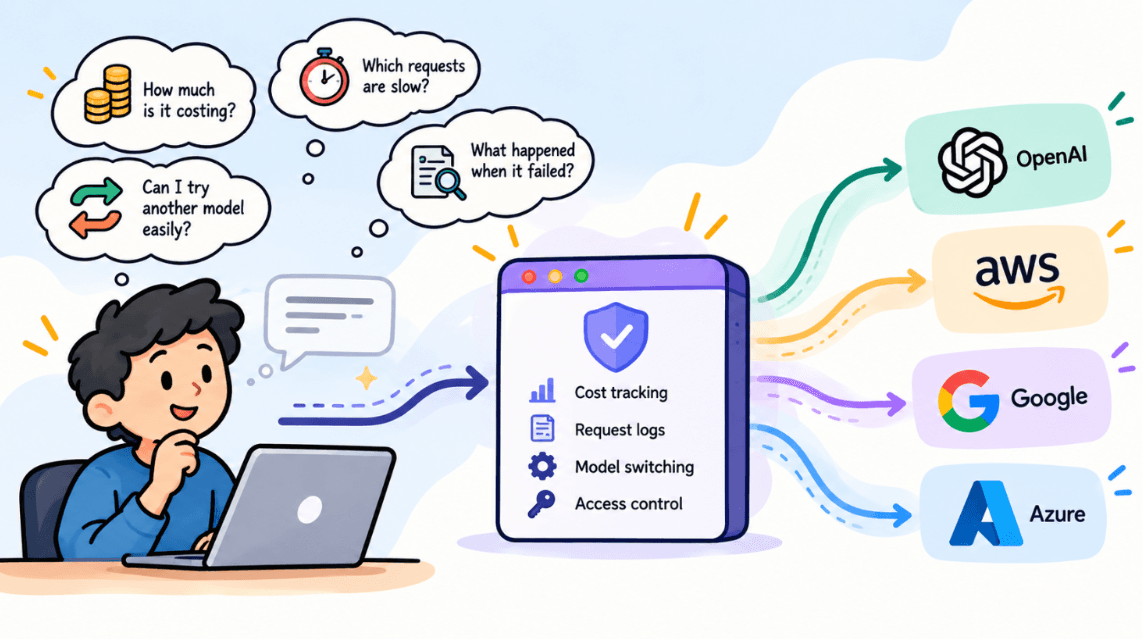
How much is this feature actually costing us? Which requests are slow? Can we switch models without changing the application? Can different apps have different limits? And if something goes wrong, can we see what actually happened?
Calling the model directly still works. The problem is that managing everything around those calls starts getting harder.
When direct AI calls start getting difficult to manage
Imagine you have built an app with a chat feature. When a user asks a question, your backend sends it to an AI model and shows the answer on the screen. The code for this is usually short, and it calls the AI provider directly.
const answer = await provider.chat({
  model: "claude-sonnet-4-5",
  messages: [{ role: "user", content: "How do I reset my password?" }],
});
This works well at first. Over time, though, simple questions start to appear that this setup cannot answer. Someone asks how much the AI costs each month, and the provider only shows one total for the whole account, so you cannot tell which feature is spending the money. Someone else wants to try a cheaper model, but the model name is written inside the code, so every experiment means a code change and a new release. A user reports that the chat was slow one morning, and there is no record of that request or how long it took.
You could build your own cost tracking, logging and model switching. The easier path is to put a small service in the middle that already does all of this. LiteLLM is one of the most popular choices for that job.
But what we really need is one place through which all of those AI requests can pass. A place where we can see what is happening before the request reaches the model and after the response comes back. That is where an AI gateway becomes useful.
What LiteLLM is
For this setup, the gateway we are going to use is LiteLLM.
LiteLLM is a free and open source gateway for AI models. A gateway is simply a service that sits between your app and the AI provider. Your app sends its request to the gateway, and the gateway passes it on to the real model.
A good way to picture it is the reception desk in an office. Visitors do not walk straight into the meeting rooms. They stop at reception first, where someone checks who they are, writes their name in the book and sends them to the right room. LiteLLM is that reception desk for every AI call your app makes.
Before
Your backend  →  AI provider
After
Your backend  →  LiteLLM  →  AI provider
Because every request passes through LiteLLM, it can do useful work without you writing any extra code. It counts the tokens and the cost of every call. It keeps a log of each request, with how long it took and whether it failed. It lets you call Bedrock, OpenAI, Azure, Google and more than a hundred other providers in exactly the same way. It also lets you create a separate key for each app or team, each with its own spending limit.
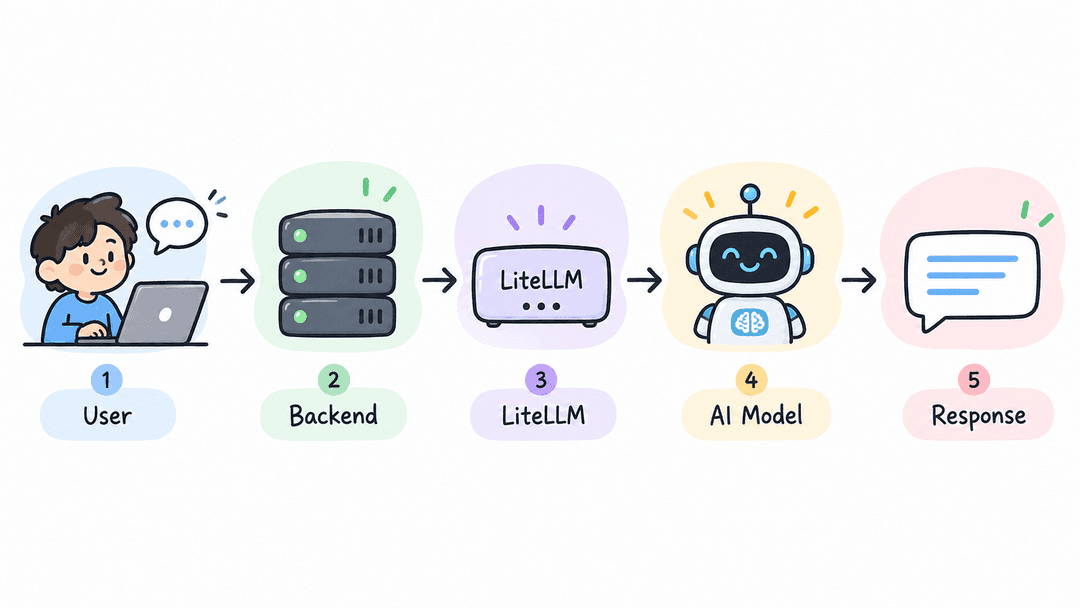
How one request travels
The easiest way to understand the whole setup is to follow a single message from start to finish.
Imagine a user types “How do I reset my password?” in the chat and presses send. Your backend receives the question, adds some context such as the system prompt and the earlier messages, and builds a request. Instead of sending that request to the AI provider, the backend sends it to the LiteLLM address. The request carries a key in its header and asks for a model called simply chat.
Now LiteLLM takes over. First it checks the key. If the key is wrong or has expired, it stops right there and returns an error. If the key is fine, LiteLLM looks up the name chat in its config file and finds the real model behind it, for example Claude running on AWS Bedrock. It calls that model and waits for the answer. When the answer arrives, LiteLLM writes down how many tokens were used, what it cost and how long it took.
Finally, LiteLLM sends the answer back to your backend in a standard format, and the backend shows it on the user’s screen. The user notices nothing different. For the backend, the only real change is the address it sends requests to.
Four ideas to understand first
Before setting anything up, it helps to understand four ideas that appear all through this guide. They build on each other, so it is worth reading them in order.
Tokens
AI models do not read text letter by letter or word by word. They split it into small pieces called tokens. In English, one token is roughly four characters, or about three quarters of a word. The question “How do I reset my password?” is around eight tokens, and a full page of text is usually a few hundred.
Tokens matter because they are how AI providers charge you. You pay for the tokens you send in, which include your question, the system prompt and any earlier messages, and you also pay for the tokens the model writes back. A model might charge, for example, 3 dollars for every million tokens that go in and 15 dollars for every million that come out. One chat message costs very little, but thousands of users sending long conversations every day adds up quickly.
You never create tokens yourself. The provider counts them and reports the numbers in every response, in a field called usage. LiteLLM reads that field on every call, multiplies it by the price of the model, and keeps a running total. That is how it can show you exactly where your money goes.
Model aliases
Every AI model has an official ID, and these IDs are long and change often, such as bedrock/anthropic.claude-sonnet-4-5. A model alias is a short, friendly name that you invent yourself, such as chat or summary, and connect to one of those real IDs.
You create an alias in the LiteLLM config file by writing the name you want next to the real model it should point to. You will see exactly how in Step 1. From then on, your app only ever asks for chat and never mentions the real model at all.
The reason this is so useful is that the choice of model moves out of your code and into one small file. If you want to try a cheaper or newer model, you change one line in the config and restart LiteLLM. Your app does not change and does not need a new release. It also means you can point the same alias at a completely different provider later, and your app will never know.
The master key
The master key is the main admin password for your LiteLLM server. Whoever has it can do everything. They can call any model, create and delete other keys, change settings and read every log.
You create the master key yourself. It can be any long random string, as long as it begins with the letters sk. A simple way to make one is to run openssl rand -hex 32 in a terminal and put sk in front of the result. You then give it to LiteLLM through an environment variable called LITELLM_MASTER_KEY, and the config file tells LiteLLM to read it from there. The key itself never appears in the config file, so it never ends up in git.
Because it is so powerful, the master key should be used only by the people who manage LiteLLM, for tasks like logging in to the dashboard and creating other keys. It should never be placed inside an application. On a server, it belongs in a secrets store such as AWS Secrets Manager.
Virtual keys
A virtual key is an ordinary key that you create for one app, one service or one team. Your app uses this key to call LiteLLM, instead of the master key.
You create virtual keys using the master key, either in the LiteLLM dashboard by opening Virtual Keys and clicking Create New Key, or with a single API call, which you will see in Step 5. When you create one, you can give it a name, choose which model aliases it is allowed to use, and set a spending limit in dollars. LiteLLM then gives you the new key, which also begins with sk.
Virtual keys give you safety and visibility. If a virtual key leaks, you delete just that key and create a new one, and nothing else is affected. If a bug makes your app call the model in an endless loop, the spending limit stops it before the bill grows. And because each key is tracked separately, the dashboard can show you how much each app or team is spending.
Two pieces of advice before you start
The first is about where LiteLLM runs. There are hosted gateway services where you sign up, point your app at their address and get similar dashboards without running anything yourself, which is easier to start with. If your prompts contain personal or sensitive data, though, that data would pass through another company’s servers. Running LiteLLM yourself, in your own cloud account, keeps the data where it already is. If your data is not sensitive, a hosted service is a perfectly good choice.
The second is about how you switch over. If your app already calls AI models in several places, move one feature to LiteLLM first and leave the rest alone. Choose a feature that is used often and easy to test by hand, so any problem shows up quickly and only affects that one feature. Once it works well, move the others one at a time.
Step 1. Write the config file
LiteLLM reads a single YAML file, usually called config.yaml, that lists your models and the aliases you want to use for them. Here is a small example with two aliases.
model_list:
  - model_name: chat
    litellm_params:
      model: bedrock/anthropic.claude-sonnet-4-5
      aws_region_name: us-east-1
 - model_name: summary
    litellm_params:
      model: bedrock/anthropic.claude-haiku-4-5
      aws_region_name: us-east-1
litellm_settings:
  drop_params: true
general_settings:
  master_key: os.environ/LITELLM_MASTER_KEY
  database_url: os.environ/DATABASE_URL
Each model_name is an alias, and the model value under it is the real model it points to. The word before the slash tells LiteLLM which provider to use, which here is Bedrock. The drop_params setting stops a request from failing just because one model does not accept a setting that another model does. Anything written as os.environ followed by a name is read from an environment variable, which is how the master key and the database address stay out of the file.
To switch the chat to a different model later, you would only change the model line under chat and restart LiteLLM.
Step 2. Run it on your laptop
Always try LiteLLM on your own machine before you touch the cloud. It only takes a few minutes, and any mistake in the config shows up straight away.
You need Docker installed. Create a file called compose.yaml next to your config.yaml. It starts LiteLLM together with a small Postgres database, which LiteLLM uses to store virtual keys and the cost history.
services:
  litellm:
    image: ghcr.io/berriai/litellm:main-latest
    ports: ["4000:4000"]
    volumes: ["./config.yaml:/app/config.yaml"]
    command: ["--config", "/app/config.yaml"]
    environment:
      LITELLM_MASTER_KEY: sk-local-master-123
      DATABASE_URL: postgresql://llm:llm@db:5432/litellm
      AWS_ACCESS_KEY_ID: your-aws-key
      AWS_SECRET_ACCESS_KEY: your-aws-secret
    depends_on: [db]
db:
    image: postgres:16
    environment:
      POSTGRES_USER: llm
      POSTGRES_PASSWORD: llm
      POSTGRES_DB: litellm
Start everything with one command.
docker compose up
Now send a test message with curl. Notice that the model is simply the alias chat.
curl http://localhost:4000/v1/chat/completions \
  -H "Authorization: Bearer sk-local-master-123" \
  -H "Content-Type: application/json" \
  -d '{"model": "chat", "messages": [{"role": "user", "content": "Say hello in 5 words"}]}'
You should get an answer that looks like this. The usage part at the bottom shows the tokens that went in and came out.
{
  "model": "chat",
  "choices": [{ "message": { "role": "assistant", "content": "Hello there, nice to meet!" } }],
  "usage": { "prompt_tokens": 14, "completion_tokens": 8, "total_tokens": 22 }
}
Finally, open http://localhost:4000/ui in your browser and log in with the username admin and your master key as the password. Go to the Logs page and you will see the request you just sent, together with its token count and its cost.
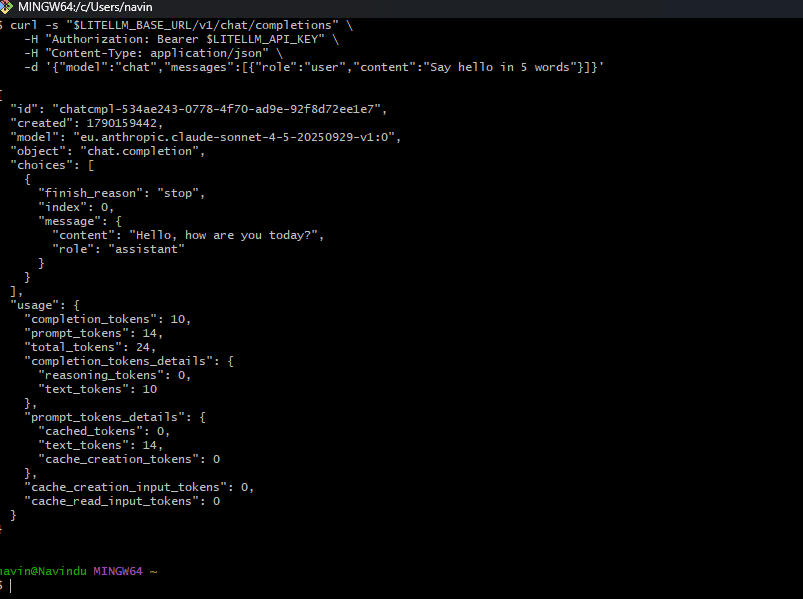
[Screenshot 1 goes here. Your terminal with the curl command and the answer.]
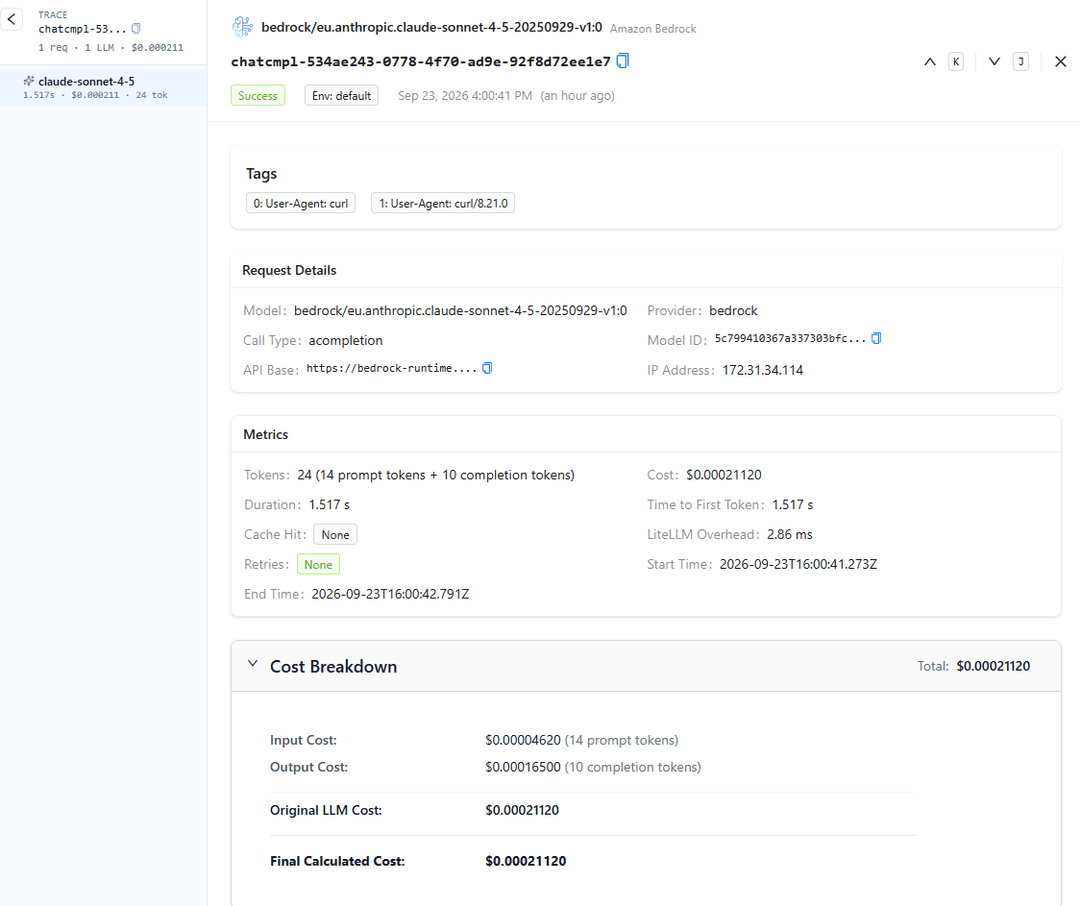
[Screenshot 2 goes here. The Logs page in the LiteLLM dashboard showing that request, with the message text blurred.]
If you do not have access to Bedrock, you can use any other provider instead. Change the model line to openai/gpt-4o-mini and replace the two AWS lines with your OPENAI_API_KEY. Everything else in this guide stays the same, which is the alias idea doing its job.
Step 3. Call it from your code
Because LiteLLM uses the same request format as OpenAI, your backend only needs a normal HTTP request to talk to it. Here is a small TypeScript function that does exactly that.
export async function callLiteLLM(model: string, messages: Message[]) {
  const response = await fetch(`${process.env.LITELLM_BASE_URL}/v1/chat/completions`, {
    method: "POST",
    headers: {
      Authorization: `Bearer ${process.env.LITELLM_API_KEY}`,
      "Content-Type": "application/json",
    },
    body: JSON.stringify({ model, messages, temperature: 0.3 }),
  });
  if (!response.ok) {
    throw new Error(`LiteLLM error ${response.status}: ${await response.text()}`);
  }
  const data = await response.json();
  return {
    content: data.choices[0].message.content,
    promptTokens: data.usage.prompt_tokens,
    completionTokens: data.usage.completion_tokens,
  };
}
Using it in the rest of your code then looks like this.
const result = await callLiteLLM("chat", [
  { role: "user", content: "How do I reset my password?" },
]);
console.log(result.content);
The function needs two environment variables. LITELLM_BASE_URL is the address where LiteLLM runs, and LITELLM_API_KEY is the virtual key your app uses. On your laptop, the address is http://localhost:4000.
If you are replacing an existing function that already calls a provider, make the new function return exactly the same fields as the old one. Then switching over is a one line change, because you only import the new function instead of the old one. The rest of your code and its tests stay the same, and switching back is just as easy if something goes wrong.
Step 4. Put it on AWS
LiteLLM is just a Docker container, so on AWS it runs like any other container. There are four parts to set up, and we will go through them one by one.
Put your config into an image
Start by building your own image that includes your config.yaml, and push it to Amazon ECR, which is where AWS stores container images.
FROM ghcr.io/berriai/litellm:main-stable
COPY config.yaml /app/config.yaml
CMD ["--config", "/app/config.yaml", "--port", "4000"]
Keeping the config inside the image means every config change goes through git and gets a version you can roll back to. In production, use a fixed image tag instead of latest, so that a new LiteLLM version never arrives by surprise.
Run it on ECS with Fargate
Next, create an ECS task definition for the container on port 4000, and an ECS service that keeps it running, with Fargate as the launch type. Pass the master key and the database address from AWS Secrets Manager rather than as plain text. For the database, a small Amazon RDS Postgres instance is enough. Point the health check at the /health/liveliness path that LiteLLM provides, and set the desired number of tasks to at least one.
Fargate is a good fit here because there is no server to create, update or patch. You hand AWS a container and it keeps it running, which is far less work than looking after your own EC2 machines for one small service.
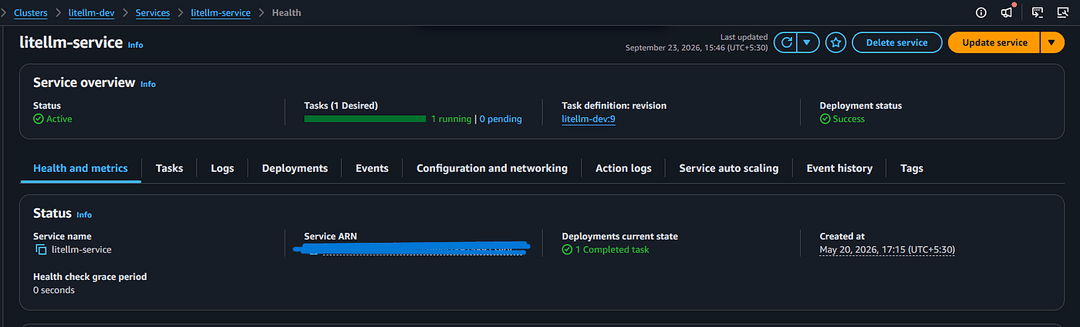
[Screenshot 3 goes here. The ECS service page showing the LiteLLM service with one task running, with the account number blurred.]
Then attach an IAM role to the ECS task, known as the task role, that allows it to call Bedrock models.
{
  "Effect": "Allow",
  "Action": ["bedrock:InvokeModel", "bedrock:InvokeModelWithResponseStream"],
  "Resource": "arn:aws:bedrock:*::foundation-model/anthropic.claude-*"
}
A role gives the container temporary credentials automatically, so there are no long lived AWS keys to store, rotate or accidentally leak.
Give it one stable HTTPS address
Finally, put Amazon API Gateway or an Application Load Balancer in front of the ECS service, so your app always calls the same HTTPS address. Every time the container restarts or redeploys it gets a new internal address, but your app needs one that never changes. The layer in front also gives you HTTPS and keeps the container itself hidden from the internet.
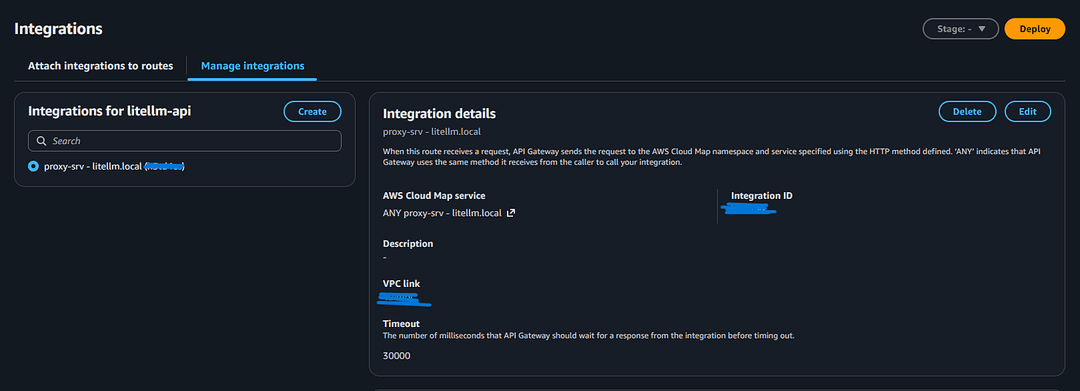
Step 5. Create a virtual key for your app
With LiteLLM running on AWS, create the virtual key your app will use. You can do it in the dashboard, or with this API call using your master key.
curl https://YOUR-LITELLM-ADDRESS/key/generate \
  -H "Authorization: Bearer YOUR_MASTER_KEY" \
  -H "Content-Type: application/json" \
  -d '{"key_alias": "chat-service", "models": ["chat"], "max_budget": 50}'
This key can only use the chat alias, and it stops working once it has spent 50 dollars. The reply contains the new key, which is what your app will send in its Authorization header from now on.

Set LITELLM_BASE_URL and LITELLM_API_KEY for your backend, and store the key as a secret in your deployment tool rather than in your code. Deploy the backend, open your app and send a chat message. Then open the LiteLLM dashboard and go to the Logs page. Your message should be there, with the model, the number of tokens, the cost and the time it took.
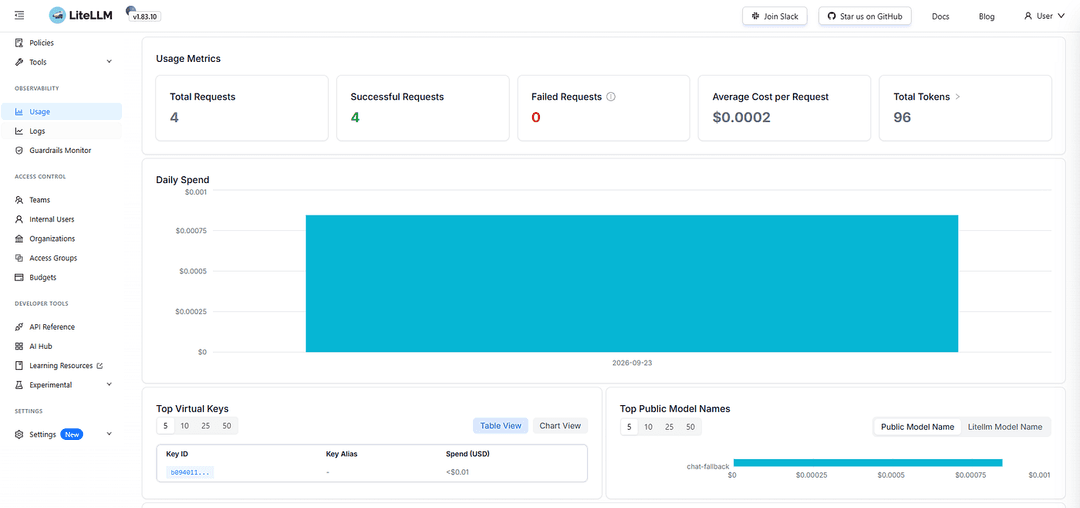
If you can see it, the whole journey described earlier is working from end to end. After a few days of real use, the Usage page will also show you the cost per day and per key, which answers the question this whole guide started with.
[Screenshot 6 goes here. The Usage page with the spend chart.]
When things go wrong
Most problems come down to a few simple causes. If you get a 401 error, the key is wrong or missing, so check the key and the Bearer header. If LiteLLM says the model name is invalid, the name in your request does not match any model_name in the config file. If AI calls suddenly stop working completely, look at the ECS service first, because it may have zero running tasks. Keep the desired count at one or more, and add an alarm for when it drops to zero.
If requests time out, remember that AI models can be slow and there is now one extra step in the path. Make the timeout in your code slightly shorter than the timeout of the backend function itself, so you get a clear error instead of a silent cut off. A 429 error means you have hit a rate limit, so wait before trying again rather than retrying straight away. A 502, 503 or 504 error usually means a short hiccup between services, and retrying once after a second is fine. If Bedrock says access is denied, either the task role is missing a permission or the model has not been enabled in the Bedrock console.
Wrapping up
LiteLLM sits between your backend and the AI model. Your code asks for a simple alias like chat, and LiteLLM checks the key, decides which real model to use, calls it and records the cost. In return you get cost tracking, request logs, easy model switching and safer keys, while your application code barely changes.
The price is one more service to keep running. If you have a single AI call in a small project, calling the provider directly is perfectly fine. Once several features use AI, or someone starts asking what it all costs, a gateway quickly earns its place.
If you want to learn this properly, start small. Run the Docker command, send one curl request and find it in the dashboard. Those ten minutes on your own laptop will teach you more than any diagram.