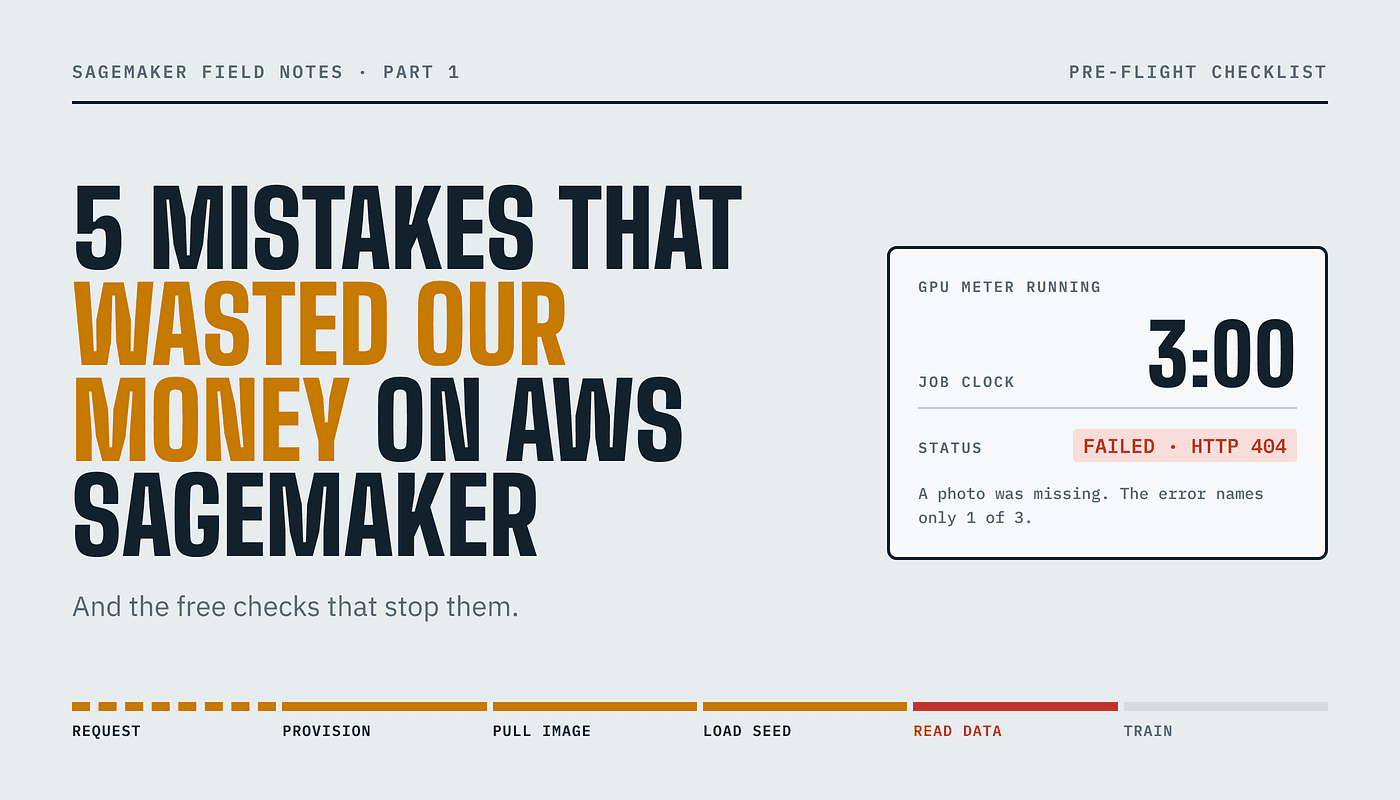
5 Mistakes That Wasted Our Money on AWS SageMaker (and the Free Checks That Stop Them)
We paid for GPU time just to find out our training jobs were broken. Here’s what went wrong.
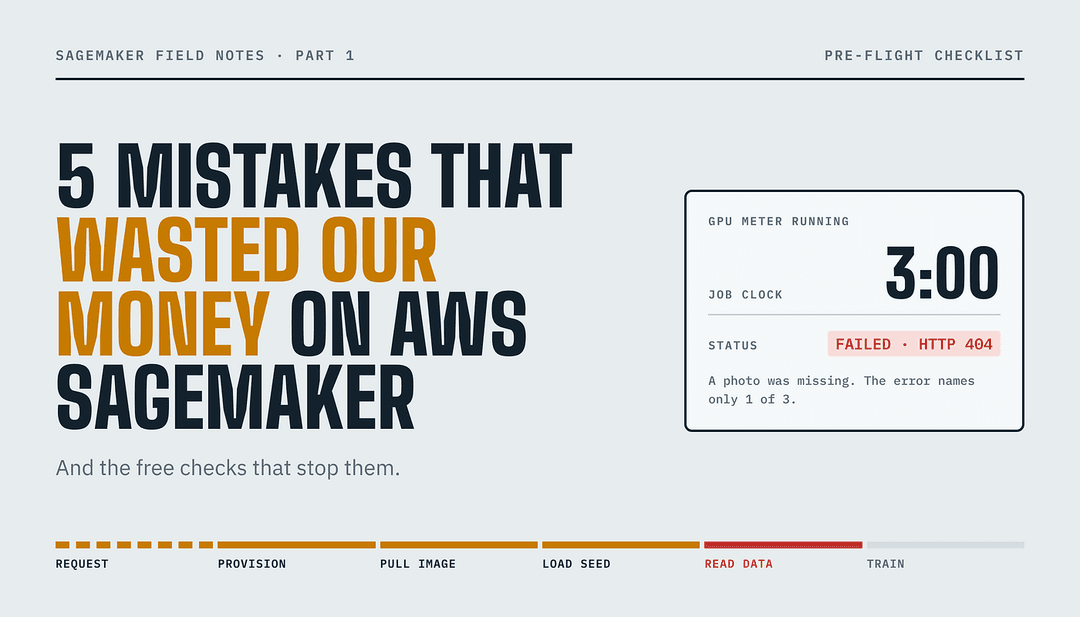
Imagine booking a taxi that starts charging the moment it arrives. You get in, and halfway through the ride, the driver says the address you gave doesn’t exist. You still pay for the ride. You fix the address, book again, and pay again.
That’s what training a model on AWS SageMaker can feel like. You press Start, AWS gives you a GPU machine, and the meter starts running. If something in your setup is wrong, you usually find out a few minutes later, when the job crashes. We made five of these mistakes on a real project. Every one of them could have been caught before pressing Start, for free.
What we were building
A small team with no machine-learning specialists, training models that recognize what underwater cameras are seeing. We used SageMaker’s ready-made image-recognition training, so we didn’t have to write the training code ourselves. That part worked well. Our own setup mistakes were the expensive part.
Why SageMaker doesn’t warn you
When you press Start, SageMaker says OK straight away. It doesn’t check your data, your folders, or your settings first. It starts the machine (and the bill) and only then runs into the problem.
So the trick is simple: check those things yourself before you press Start. That takes seconds and costs nothing.
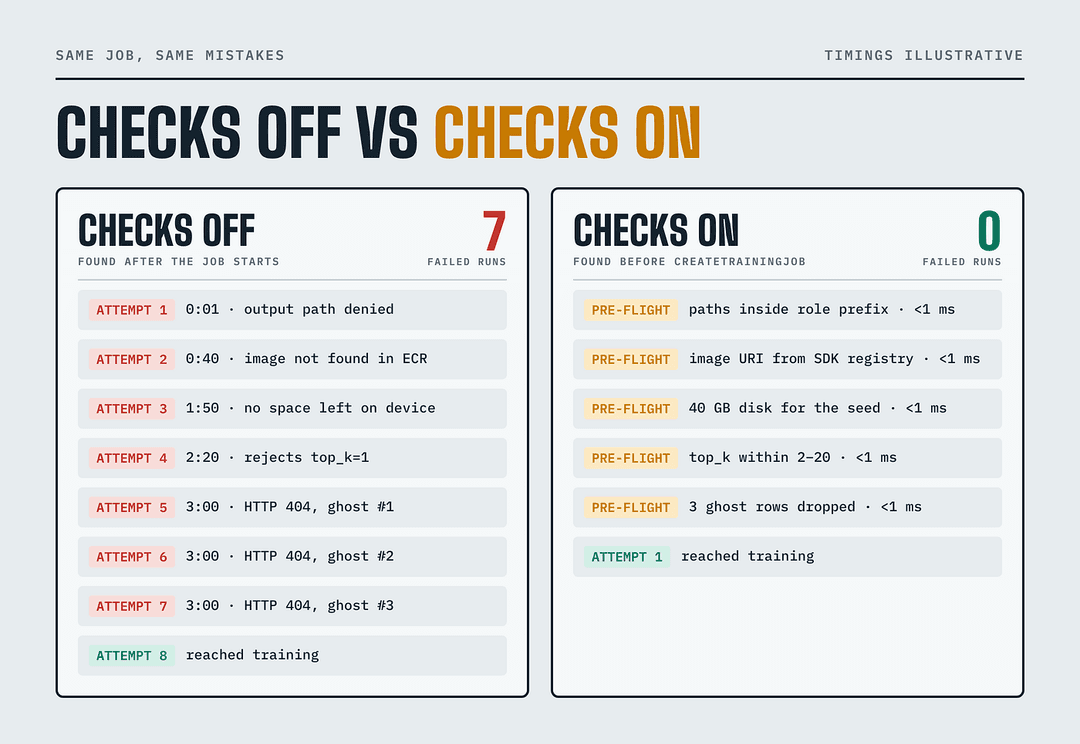
Mistake 1: A photo was missing.
Your training data is a list that says where each photo is stored. Sometimes a photo gets deleted, but it stays on the list.
The job crashed about three minutes in when it reached the missing photo. Worse, the error only mentioned one missing photo at a time. Three missing photos meant three crashes and three bills.
The free check: before starting, compare the list against what’s actually in storage, and remove anything missing.
Mistake 2: We copied an address from a tutorial.
SageMaker’s ready-made training software is stored at a different address in each AWS region. Our old script had the address for the US region, but we were running in Europe. Every job failed, and the error looked like a permissions problem, so we wasted an afternoon looking in the wrong place.
The free check: don’t copy the address from a tutorial. Ask the SageMaker SDK for the right one:
python -c "from sagemaker import image_uris; \
  print(image_uris.retrieve(framework='image-classification', region='<region>', version='1'))"
Mistake 3: We saved results to the wrong folder.
Our job was only allowed to save results in one specific folder. We pointed it at a different one, and it failed in about one second.
There was a sneakier version too. When we re-ran a failed job with the same name, it picked up the old job’s leftover files without any warning.
The free check: always save inside the allowed folder, and give each job its own subfolder named after the job.
Mistake 4: The disk was too small.
Normally our jobs read data straight from storage, so a tiny 1 GB disk was enough. Then we started building on an earlier model to save training time. That model had to be downloaded onto the machine first, and it was 10.2 GiB. The disk filled up, and the job crashed halfway through.
The free check: if a big file needs to be downloaded first, give the machine enough disk space. We now use 40 GB for those jobs.
Mistake 5: One setting had a value it doesn’t accept.
One setting, top_k, was set to 1. SageMaker's training doesn't allow that, so the job failed after starting.
The free check: write down the allowed range for each setting and check it before you start.top_k: { kind: "int", min: 2, max: 20 },
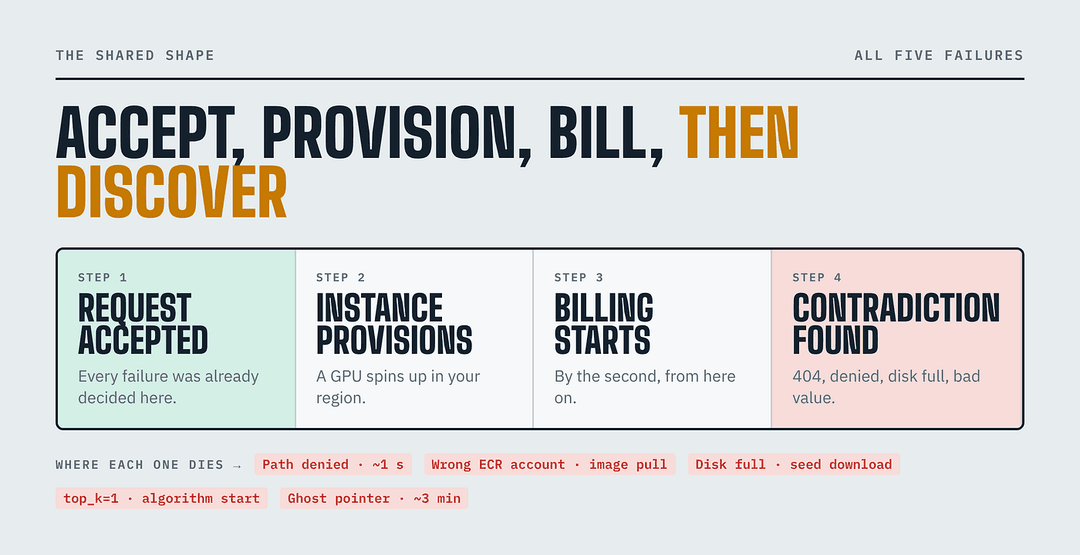
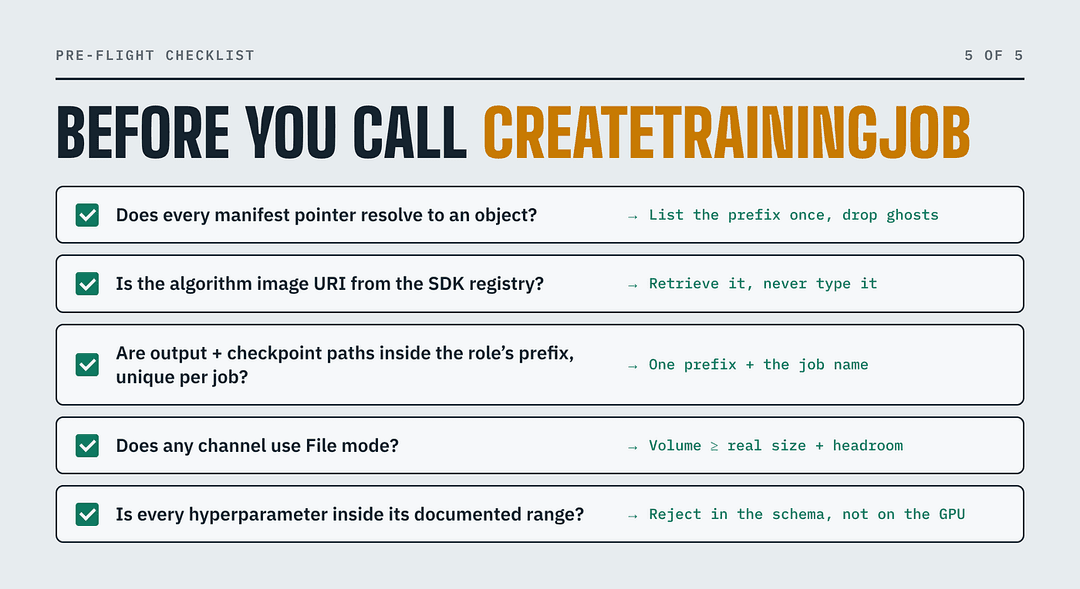
Your 5-point checklist before pressing Start
- Is every photo on the list actually in storage?
- Did the training software address come from the SDK, not a tutorial?
- Is the job saved inside its allowed folder, with its own subfolder?
- If a big file is downloaded first, is the disk big enough?
- Is every setting within its allowed range?
Final thoughts
None of these mistakes needed a GPU to find. They were all in our setup from the start. Checking them first takes seconds and costs nothing. Finding them on a running GPU costs real money every time.
Next in this series is why your training and test data might be quietly mixed up and how that makes a model look better than it is.
References
- Amazon SageMaker image classification settings
- Addresses for SageMaker’s built-in training software
- Checkpoints in Amazon SageMaker
- Incremental training in Amazon SageMaker
If this helped, give it a clap and follow for more practical breakdowns on cloud and AI.